
Operators
User Management
The "Users" tab in the cairo.BI system allows for full management of users with access to the system – from adding new accounts to assigning roles, access levels, and permissions. It serves as a central administrative hub, allowing you to control who can access specific reporting data and to what extent.
Users List
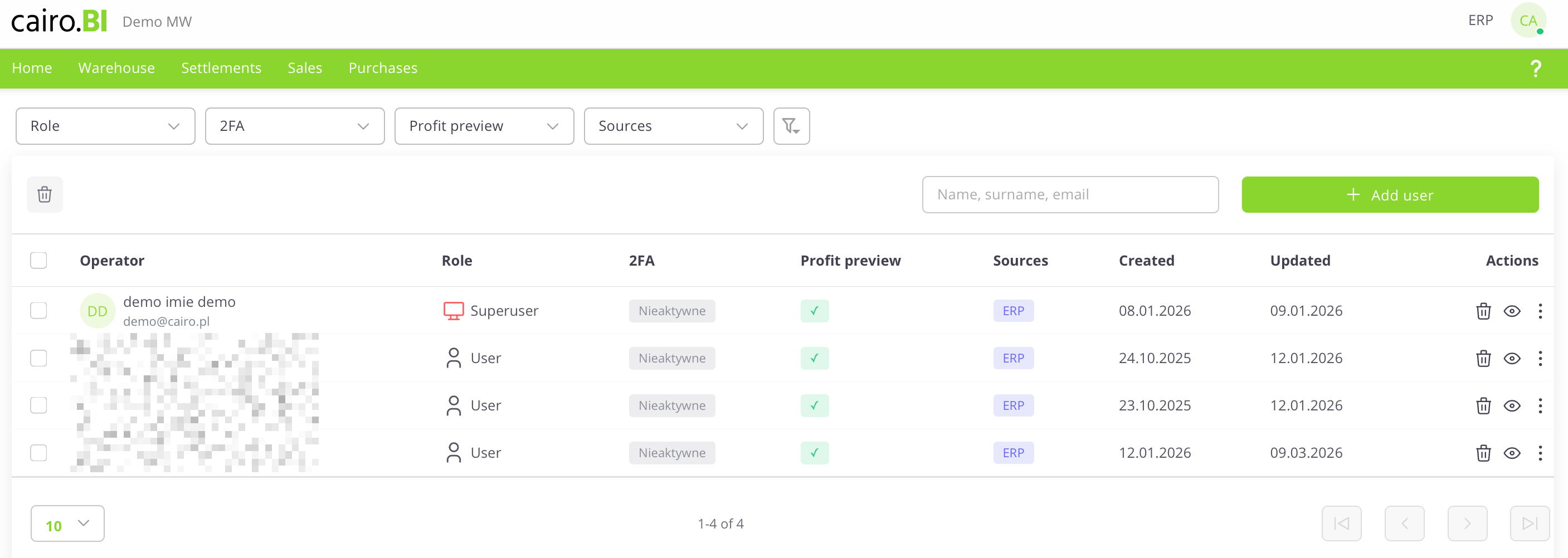
The "User Management" view presents a list of system users along with their permissions and security status. The following information is provided for each user:
-
User – The name, surname, and email address assigned to the account.
-
Role – The level of permissions in the system (e.g., Superuser, User).
-
2FA – The status of two-factor authentication (Active or Inactive).
-
Profit Preview – An indicator (checkmark) showing if the user is authorized to view margins and financial data.
-
Sources – The systems from which the data originates (e.g., ERP).
-
Created – The date the account was registered in the system.
-
Updated – The date of the last modification to the user's data.
-
Actions – A set of tools for managing a specific record: delete (trash icon), preview (eye icon), and edit.
User Card
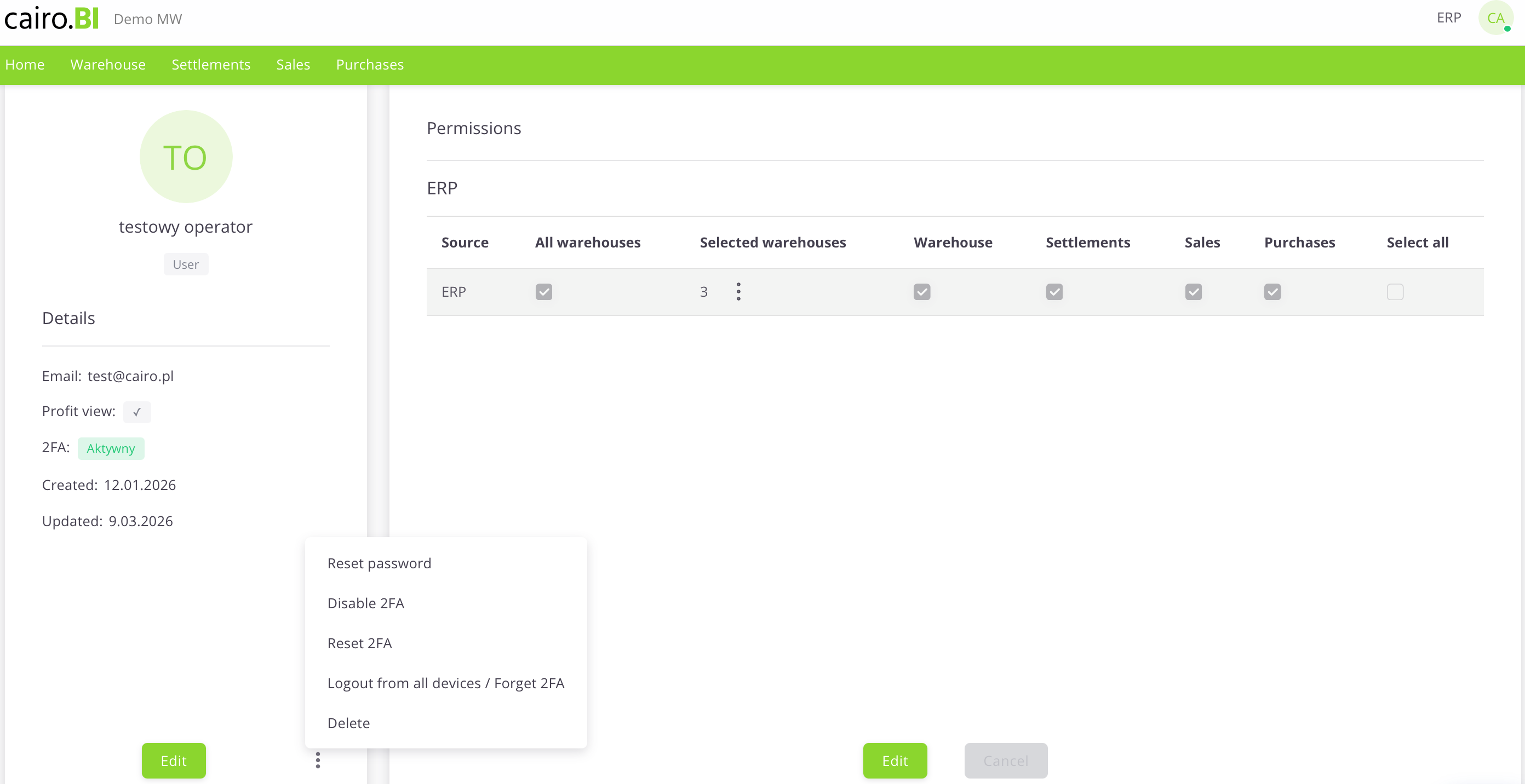
User Card (Details & Permissions)
The "User Card" is a detailed view that allows for full profile editing, account security management, and precise definition of data visibility. The card is divided into an information section and a permissions panel:
Profile Details
Located on the left side of the screen, this section displays basic user information:
-
Initials and Name – A graphical visualization along with the user's full name and assigned role.
-
Email – The address used for logging in and system communication.
-
Profit Preview – A toggle/indicator for margin visibility.
-
2FA – Current two-factor authentication status.
-
Created / Updated – Registration and last activity dates.
Permission Management
The main table allows you to assign access to specific modules and warehouses:
-
Source – The data source system (e.g., ERP).
-
All Warehouses – A collective checkbox granting access to the entire warehouse structure.
-
Selected Warehouses – A function allowing for the selective choice of specific warehouses (e.g., 03, CE, 02) via a dropdown list.
-
Tab Access (Warehouse, Settlements, Sales, Purchases) – Specific checkboxes that determine if a user has access to the corresponding sections (tabs) in the main system menu.
-
Select All – A button to quickly select all available permissions for a given source.
Additional Actions Menu
Available under the "three dots" icon, these buttons allow for advanced account administration:
-
Reset Password – Forces the user to change their password.
-
Disable / Reset 2FA – Manages the additional layer of account security.
-
Logout from all devices / Forget 2FA – Immediately terminates all active sessions and trusted device settings for the user.
-
Delete – Completely removes the user card from the system.
Adding a new user
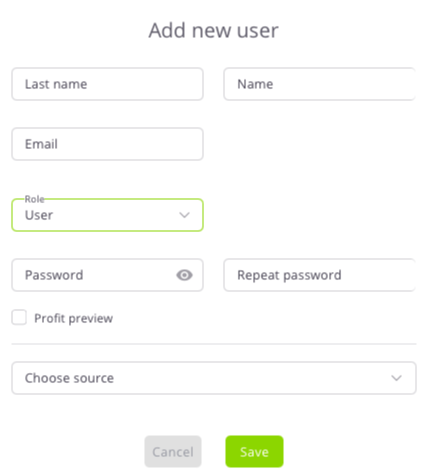
The
"AddNew
User"configuration
Roleswindow allows you to enter identification data and Permissions
Roles define which sections of the systemuser's ainitial userrole canand access:access levels. The following fields are completed in the form:
-
ROLE_MAGAZYNSurname and Name –accessTexttofieldswarehouseforreportsuserand analytics,identification. -
ROLE_ROZRACHUNKIEmail –accessThetoaddressreceivables,usedliabilities,asandthebalanceloginreports,for the platform. -
ROLE_SPRZEDAZRole –accessA dropdown list tosaleschooseanalyticstheandaccessreports,level: Superuser or User. -
ROLE_ZAKUPYPassword / Repeat Password –accessFields topurchasingdefinereports,the access key with an option to preview characters. -
ROLE_ZYSKProfit Preview –accessA checkbox determining the right toprofitviewand marginfinancial data.
If an operator does not have the ROLE_ZYSK permission, all columns and charts related to profit and % profit will be hidden or displayed as 0.When this role is enabled, the user gains full visibility into profitability and margin data.
Data Sources
Each operator can have access to different data sources – e.g., ERP systems, B2B modules, and, in the future, other integrated environments.Administrators can assign one or multiple sources to a user, precisely controlling which data is available to them.
Warehouse Access
When assigning roles and sources, it is also possible to define access to specific warehouses.Administrators can:
grant access toall warehouses, or-
selectSelectspecificSourcelocations– A dropdown list to indicate the data source system (e.g.,[CE] Central, [03] Warehouse 03, [02] Warehouse 02)ERP).
ThisData ensuresis eachconfirmed user sees onlywith the data"Save" relevantbutton, toor theirdiscarded scopeusing of work."Cancel".
Superuser
A user with Superuser permissions has full access to all system data and functionalities.Theysystem functions. This role can:
-
add,Add, delete, and editoperators,users. -
assignAssign roles, sources, andwarehouse access,warehouses. -
manageGrantpermissions,or revoke permissions. -
configureManage systemsettings.configuration.
It is recommended to grant Superuser status only to trusted system administrators.
Two-Factor Authentication (2FA)
Two-factor authentication (2FA)2FA) enhancesprovides loginan security.Onceextra enabled,layer theof usersecurity, mustrequiring providenot just a one-timepassword but also a unique code fromgenerated anin authenticationa mobile app during login.
1. Monitoring 2FA Status
Security status can be checked in additiontwo to their password.views:
-
2FAUsercanTable:beTheactivated"2FA" column shows if the function is Active (white/gray) orresetInactiveonly(lightduring operator editinggray). -
WhenUseractive,Card:theTheoperator"Details"profilesection (left panel) displays the current status (e.g.,“Enabled”2FA: Active).
2. Activation and aConfiguration
Activation is performed through the profile edit mode:
-
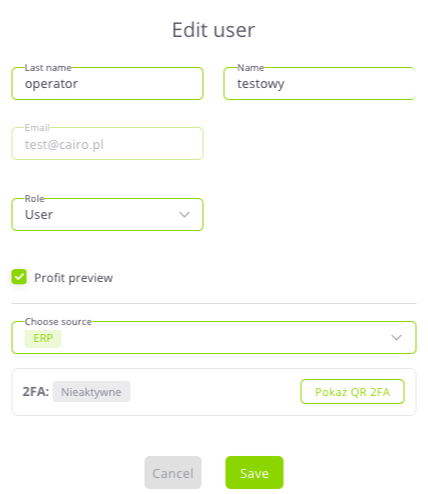
The
“Show QR code”2FAbutton.section is located in the "Edit User" window. -
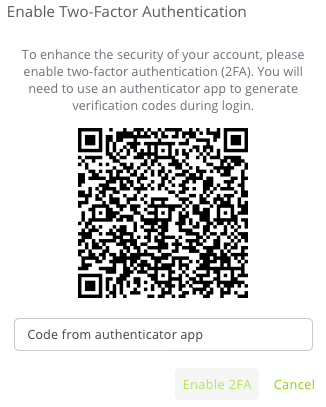
After resetting or deactivation,If the statuschangesis Inactive, click the "Show 2FA QR" button to“Disabled”display a code to be scanned in an authenticator app (e.g., Google Authenticator).
The “Operators” tab in cairo.BI provides full control over user accounts, roles, access levels, and authentication security — ensuring efficient and safe management of your analytics environment.